Wi-Fi Security Tips Everyone Should Follow: Protect Your Home and Business Network
Your Wi-Fi is the front door to your digital life.
Every device connected to it—your laptop, smartphone, smart TV, baby monitor, security camera, and even your fridge—shares that same network. If an attacker breaches your Wi-Fi, they're not just stealing your internet bandwidth. They can:
-
Steal your passwords and banking details.
-
Snoop on your private communications.
-
Infect your devices with malware.
-
Use your network to launch attacks on others.
The scary part? Most people leave their Wi-Fi front door wide open without even realizing it.
But here's the good news: Securing your Wi-Fi is surprisingly simple. You don't need to be a cybersecurity expert to lock down your network. You just need to follow a few fundamental tips.
In this guide, I'll walk you through the essential Wi-Fi security practices that everyone—whether you're a home user or a small business owner—should implement today.
Tip 1: Change Your Default Router Login Credentials (Immediately!)
This is the single most important—and most ignored—tip on this list.
When you buy a new router, it comes with a default username and password. You know what they are? They're usually:
-
admin/admin -
admin/password -
root/ (blank)
These defaults are publicly published by manufacturers. Hackers have automated bots that constantly scan for routers using these default credentials. If you haven't changed them, you are effectively handing the keys to your network to anyone who knocks.
What to do:
-
Log into your router's admin panel (usually via
192.168.1.1or192.168.0.1in a browser). -
Find the "Administration" or "Management" section.
-
Change the username and password to something strong and unique (use a password manager!).
-
Don't lose it. Store it safely.
Tip 2: Use WPA3 or WPA2 Encryption (Never WEP or Open)
Your Wi-Fi uses encryption to scramble the data traveling between your devices and the router. But not all encryption is created equal.
| Encryption Type | Status | What You Should Do |
|---|---|---|
| WEP | Obsolete & Broken | Never use this. Hackers can crack it in minutes. |
| WPA | Outdated & Vulnerable | Only use if you have ancient devices that can't support better. |
| WPA2 (AES) | Secure (Standard) | This is the current industry standard. Use it. |
| WPA3 | Latest & Most Secure | If your router supports it, use it—it's even more secure than WPA2. |
What to do:
-
Go to your router's "Wireless Security" or "Wi-Fi Settings" section.
-
Select WPA2-AES (or WPA3 if available).
-
Avoid "WPA2-TKIP" or "Mixed Mode" if possible—they're less secure.
Tip 3: Create a Strong, Unique Wi-Fi Password (And Change It)
This seems obvious, but you'd be shocked at how many people use:
-
Their phone number.
-
Their pet's name.
-
12345678. -
password.
Your Wi-Fi password is the key to your network. If it's weak, attackers can use brute-force attacks to guess it.
The Rules for a Strong Wi-Fi Password:
-
Long: At least 12-15 characters (longer is better).
-
Complex: Use uppercase, lowercase, numbers, and symbols.
-
Unpredictable: Avoid dictionary words, names, or dates.
-
Unique: Do not reuse this password for any other account.
Pro Tip: Use a passphrase instead of a password. Something like BlueElephantJumpsOverMoon!2026 is long, memorable, and extremely difficult to crack.
Tip 4: Change Your Wi-Fi Network Name (SSID)
Your SSID (Service Set Identifier) is simply the name of your Wi-Fi network that appears when you scan for available networks.
Why change it?
-
Hiding the Router Model: Default names often include the router brand (e.g.,
Netgear_5GorTP-LINK_1234). This tells attackers exactly which router you're using, making it easier for them to exploit known vulnerabilities. -
Avoiding Common Names: Hackers often target default names because they assume the owner hasn't changed other settings either.
What to do:
-
Rename your network to something generic and non-identifiable (e.g.,
HomeNetworkorCafeWiFi). -
Don't include personal information like your name, address, or family member names.
Tip 5: Disable WPS (Wi-Fi Protected Setup)
WPS was designed to make it easy to connect devices to your Wi-Fi without entering a password. You press a button on the router or enter a short PIN, and the device connects automatically.
The problem? WPS is notoriously insecure.
The PIN method can be brute-forced by hackers in a matter of hours, giving them full access to your network.
What to do:
-
Log into your router settings.
-
Find the "WPS" section.
-
Turn it off completely.
It's a small sacrifice in convenience for a massive increase in security.
Tip 6: Keep Your Router's Firmware Updated
Your router is a tiny computer running an operating system. And like any computer, it has bugs and vulnerabilities. Hackers are constantly looking for ways to exploit outdated router firmware.
Manufacturers release firmware updates to patch these security holes. But unlike your phone or laptop, routers rarely update automatically.
What to do:
-
Log into your router's admin panel.
-
Look for the "Firmware Update" or "System Update" section.
-
Check for updates every few months (or enable automatic updates if available).
-
Pro Tip: Buy a router from a manufacturer that actively releases security updates (e.g., Asus, Netgear, Ubiquiti). Avoid off-brand routers with no support.
Tip 7: Enable a Guest Network for Visitors and IoT Devices
This is a game-changer for both home and business networks.
Your main network contains your sensitive data (banking, email, personal files). Your guests, friends, and IoT devices (smart bulbs, speakers, thermostats) don't need access to that.
Guest Network Strategy:
-
For Guests: Give them the guest network password. It keeps them off your main network and protects your sensitive data.
-
For IoT Devices: Put all your smart home devices on the guest network. They are notoriously insecure and often lack regular security updates. If an attacker compromises your smart lightbulb, they'll be stuck on the guest network—not your main network where your laptop lives.
What to do:
-
Enable the "Guest Network" option in your router settings.
-
Set a unique password for it.
-
Crucial: Ensure "Guest Isolation" is enabled—this prevents guests from seeing each other on the network.
Tip 8: Turn Off Your Router When Not in Use (Optional but Effective)
This is a simple yet often overlooked tip.
If you're going on vacation or leaving the office for an extended period, turn off your router.
Why?
-
It prevents attackers from scanning your network while you're away.
-
It resets your IP address (in many cases), making you a less persistent target.
-
It saves a tiny bit of electricity!
Pro Tip: For business environments, consider scheduling automatic reboots to clear memory and ensure updates are applied.
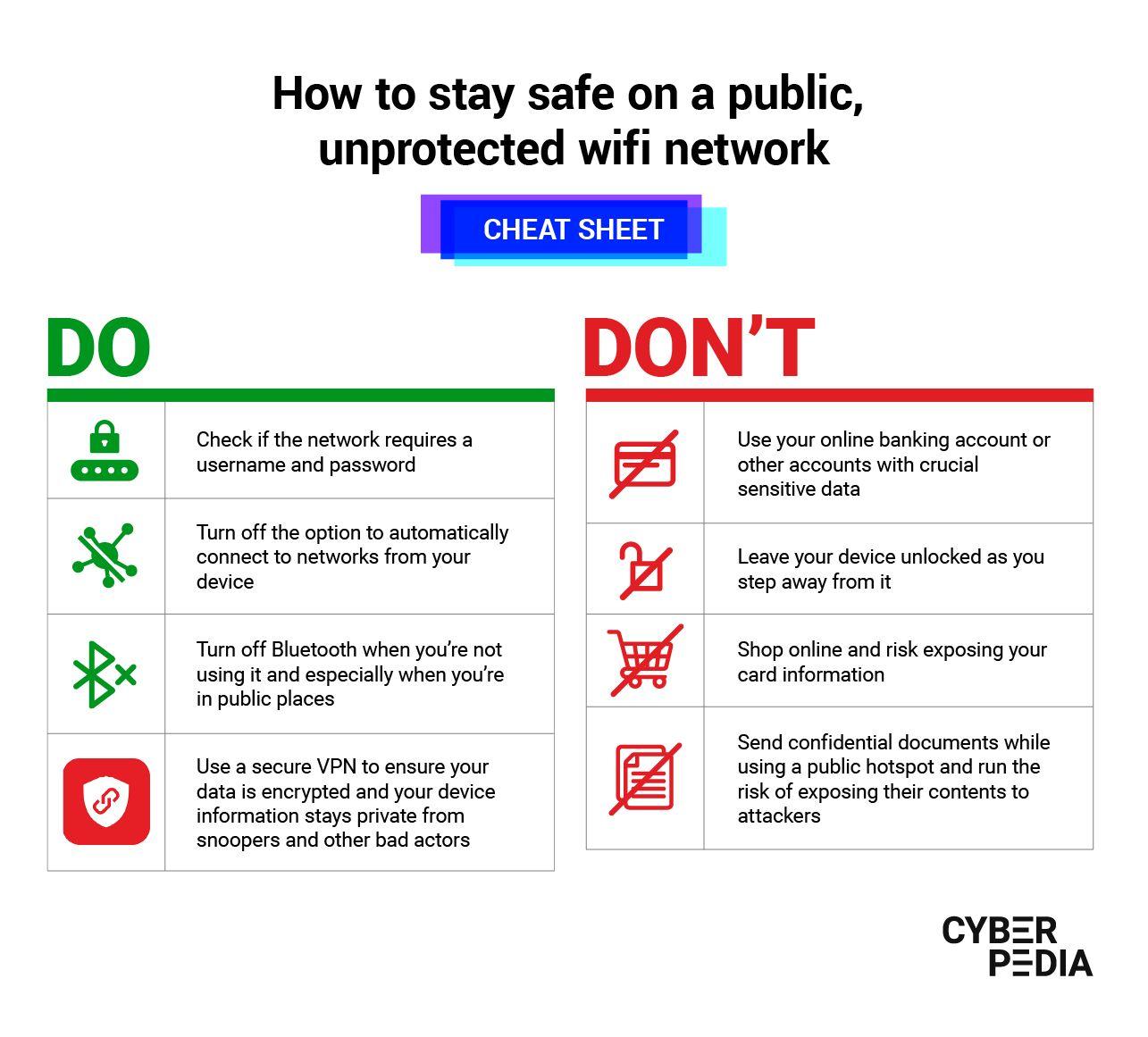
Tip 9: Use a VPN on Public Wi-Fi
This tip is less about your home Wi-Fi and more about the Wi-Fi networks you connect to when you're out and about—like coffee shops, airports, and hotels.
Public Wi-Fi is inherently insecure. You have no idea who else is on that network or whether it's been tampered with.
What to do:
-
Always use a VPN (Virtual Private Network) when connecting to public Wi-Fi.
-
A VPN encrypts all your internet traffic, making it unreadable even if an attacker is snooping on the same network.
-
Bonus: A VPN also hides your IP address and location.
Tip 10: Disable Remote Management
Many routers have a feature called "Remote Management" or "Remote Access." It allows you to access your router's settings from outside your home network (e.g., from a coffee shop).
This is a massive security risk. If an attacker finds your router's public IP address and you have Remote Management enabled, they could try to brute-force their way into your router settings.
What to do:
-
Log into your router.
-
Find the "Remote Management" or "Remote Access" setting.
-
Turn it off. (You can always enable it temporarily if you genuinely need remote access).
-
Also, disable UPnP (Universal Plug and Play) if you don't need it—it can be exploited by malware to open ports on your router.
Quick Summary (TL;DR)
| The Problem | Unsecured Wi-Fi is an open door for hackers to steal data and infect devices. |
|---|---|
| Top Priority | Change default router login credentials (immediately). |
| Best Encryption | Use WPA2-AES (or WPA3 if supported). Never use WEP. |
| Strong Password | Use a long, complex passphrase. Avoid common words. |
| Guest Network | Isolate visitors and IoT devices from your main network. |
| Public Wi-Fi | Always use a VPN on public networks. |
| Smart Moves | Disable WPS and Remote Management. Keep firmware updated. |
Contact Us
Phone: +91 9667708830
Email: info@codingnow.in
Website: https://codingnow.in/
Address:
2nd Floor, Kapil Vihar (Opp. Metro Pillar No.354)
Pitampura, New Delhi – 110034
Backlink to main website: Explore Python and AI courses at Coding Now – Gurukul of AI
